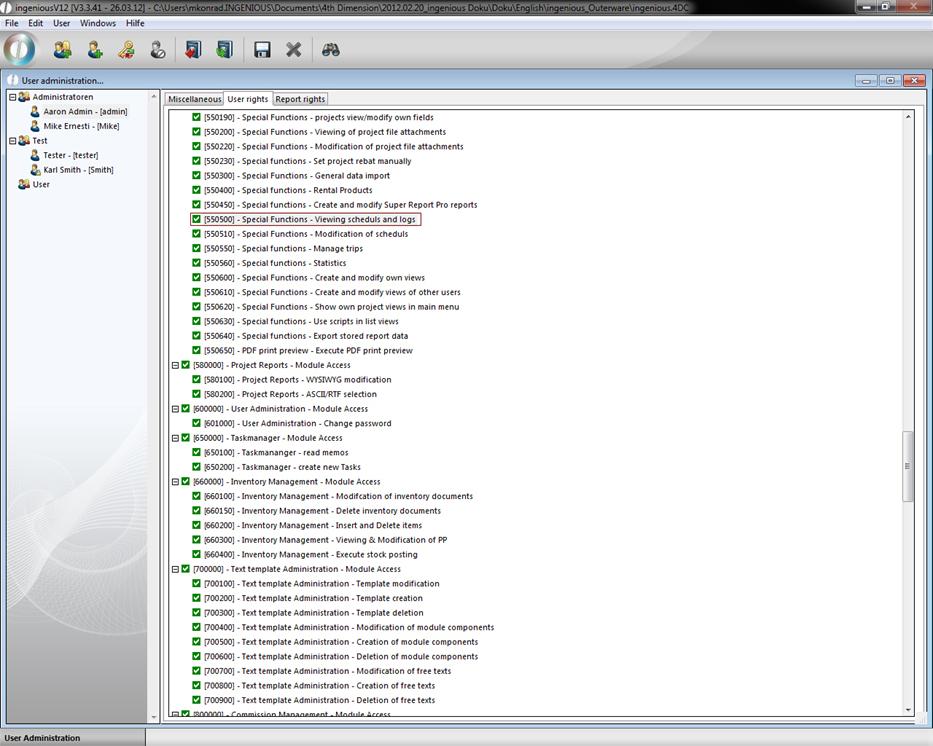
The scheduler is a new module for the execution of automatic, time controlled scripts. To be able to use the module, you have to have the specific license and the required user rights have to be enabled.
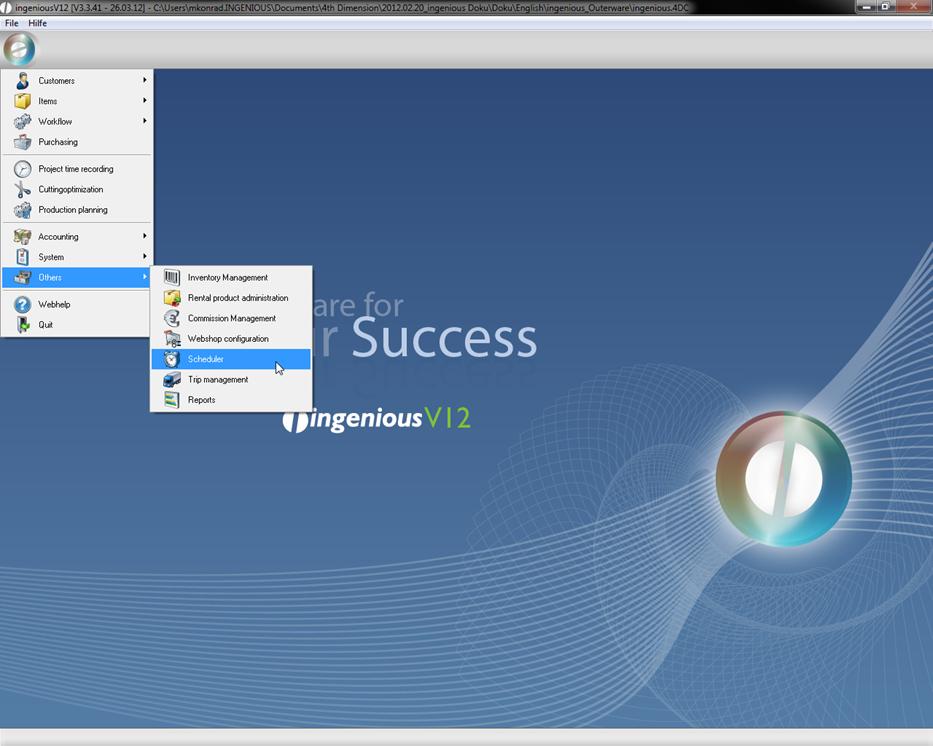
Then the scheduler is listed in the main menu in “Others”.
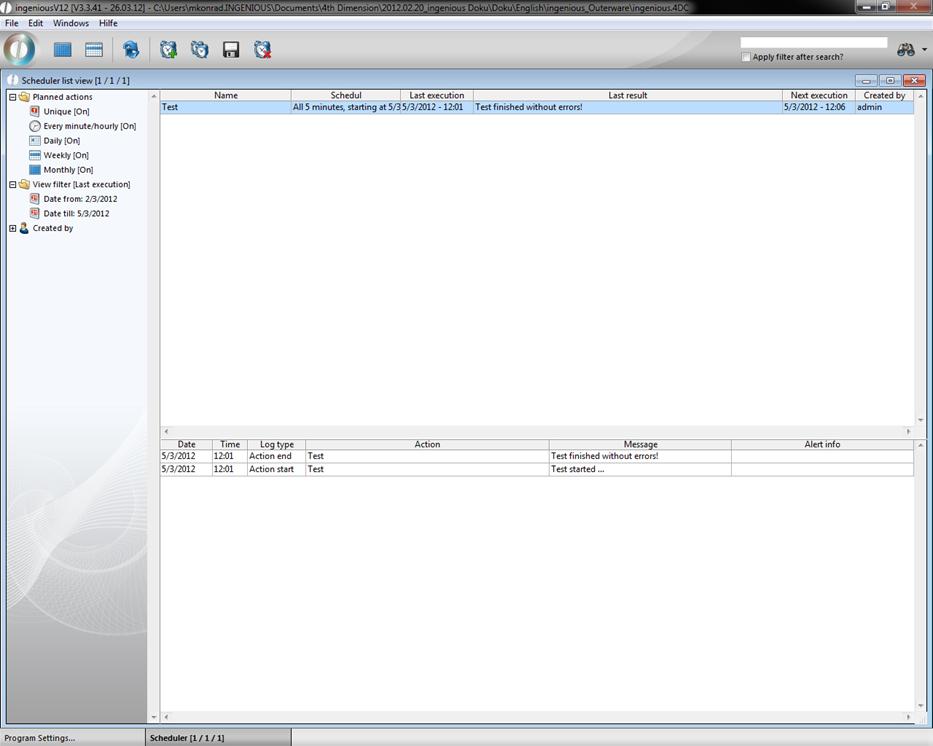
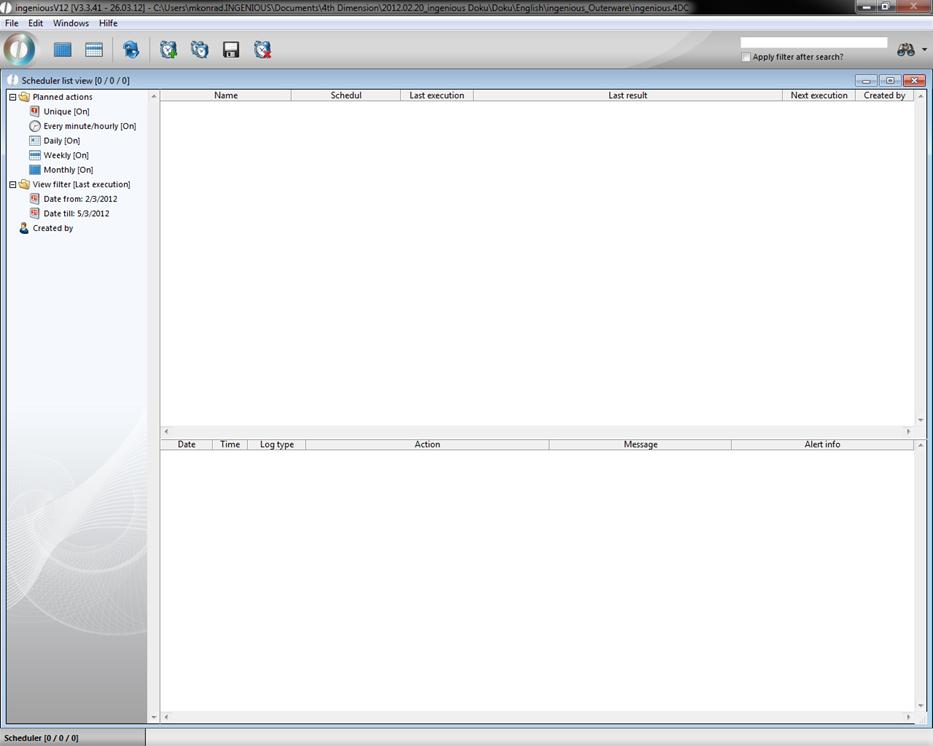
When you click on scheduler a list view will open up where all of your current controlled scripts are listed. In the selection area you have several filter functions. In the bottom area you see log entries with action start, action end, and the result of the script execution.
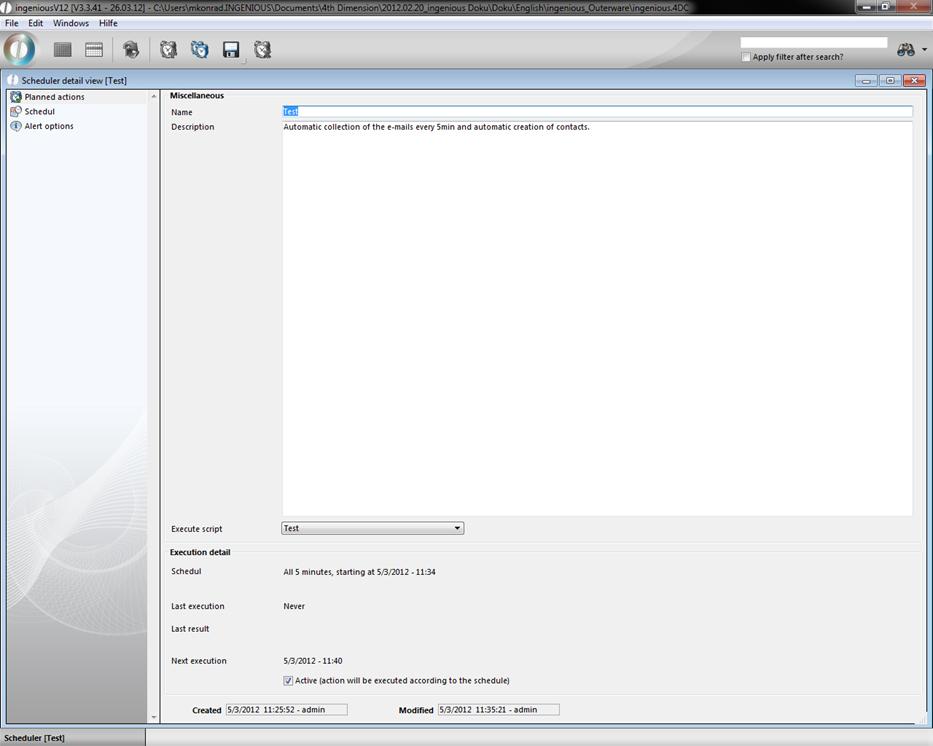
A new action can be added by clicking  and modified by double clicking it in the list view. This will open up the scheduler detail view. In the category “planned actions” you can enter name and description of the action. In the pop up field “Execute script” you choose the desired script that will be executed. The listed scripts are deposit in the free data manipulation in the stored procedures. In the displayed example a script should be executed, which collects e-mails and possibly creates a new contact. The employees of the Ingenious GmbH will help you will be happy to help you with the creation of individual scripts. In the bottom area you find the details of the execution of the action (schedule, result, time of the last and the next execution). The settings for the schedule you define in the next same-named category.
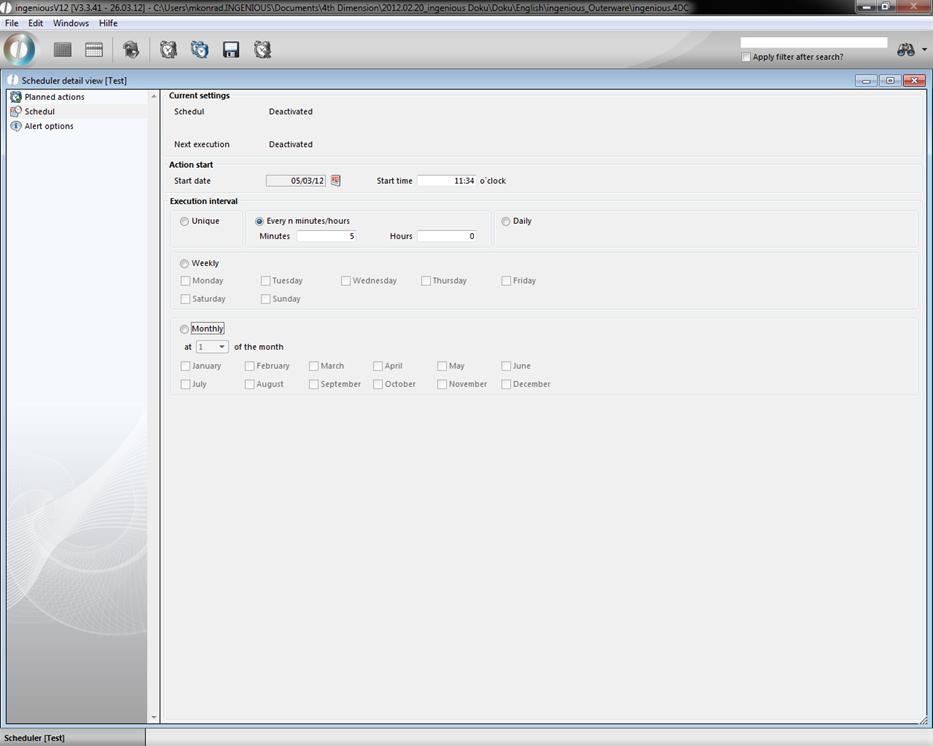
Here you can define the action start date with date and time and the execution interval of the script. In this example the scrip execution should happen every 5 minutes.
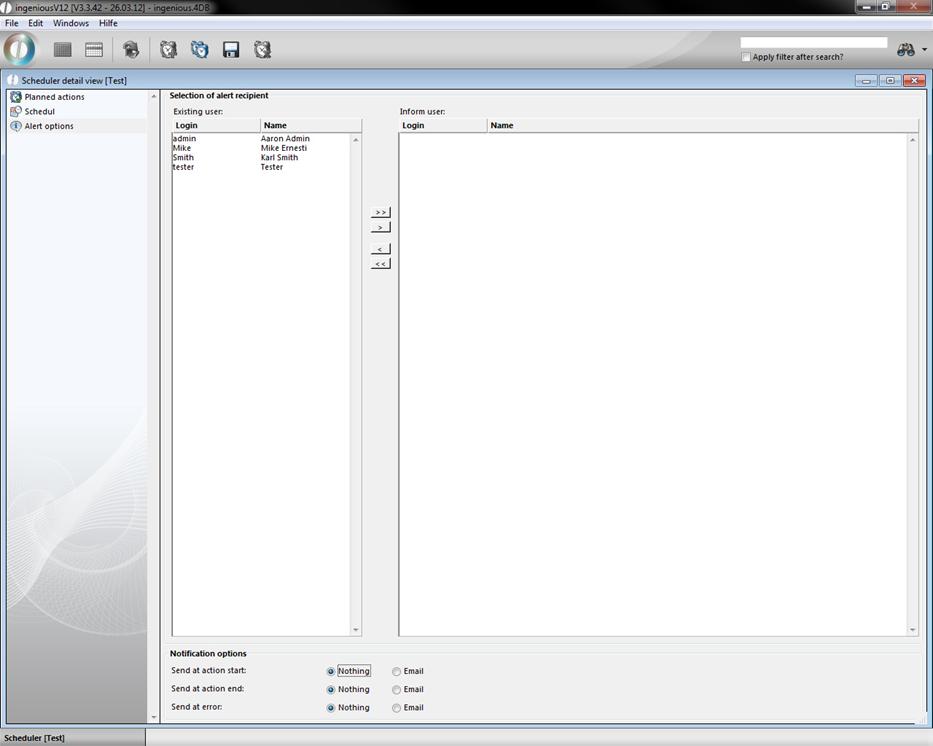
In the category “Alert options” you have the opportunity to let one or more users be notified per e-mail when an action starts, ends or the execution was not successful.
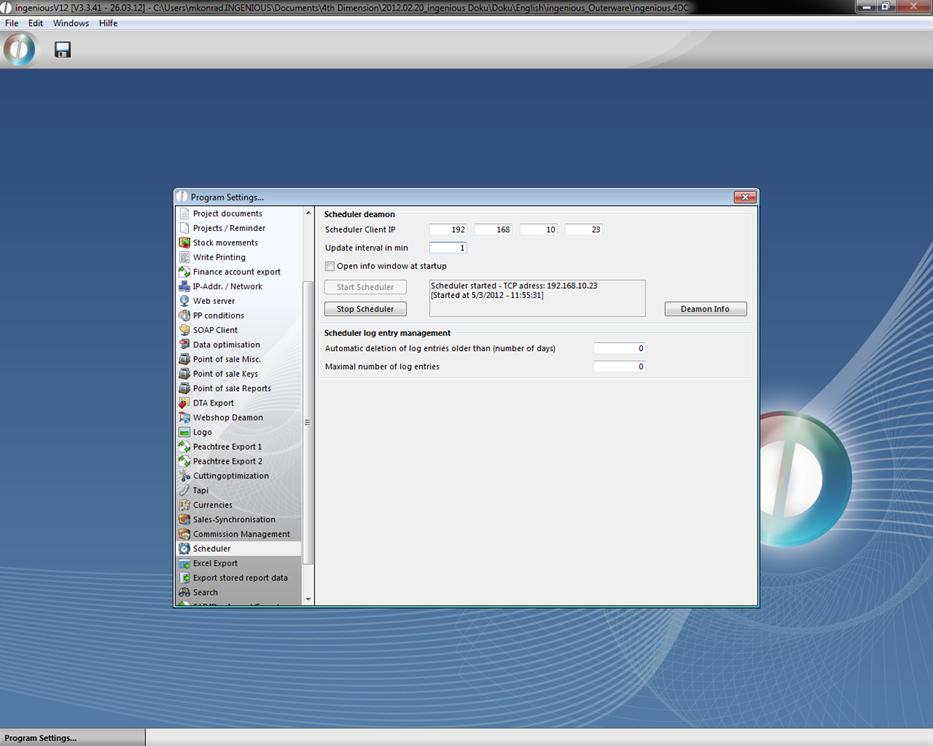
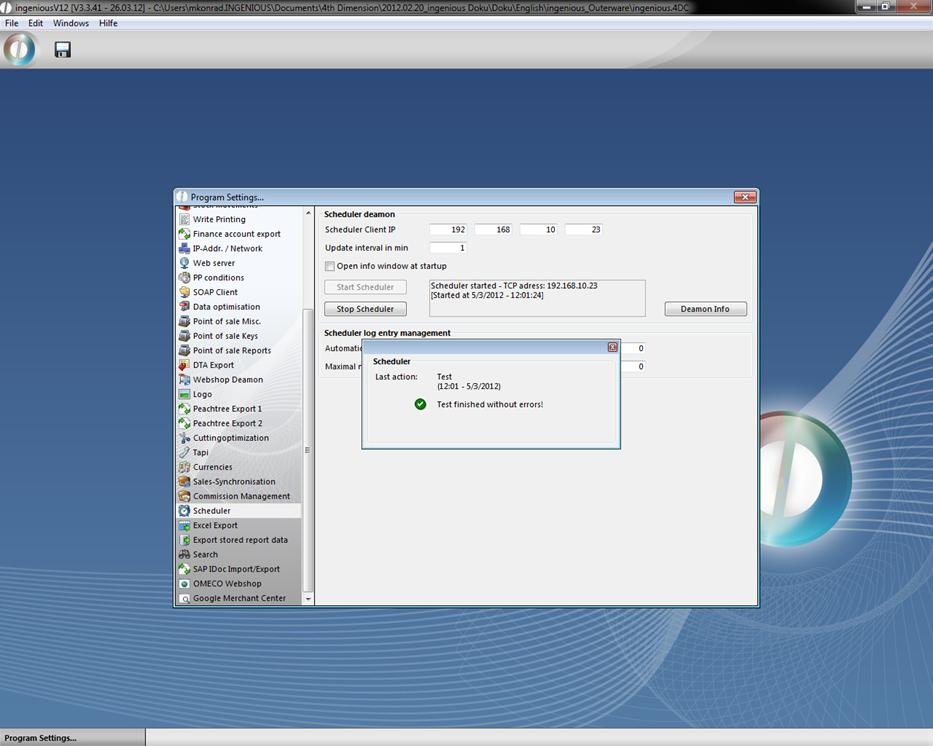
Further configurations for the scheduler you can set in the program settings. Here you define the IP of the client, for whom the script should be executed. Besides Ingenious.V12 can display an information window, which will be opened on every start and update it every x minutes. If necessary you can stop and restart the scheduler in the program settings. In the log entry management you can set the number of maximum displayed log entries and the time when the will be deleted.
In the program settings, you will find three columns for the organization of the point of sale operation: “Point of sale general”, “Point of sale keys” and “Point of sale reports”, where you can deal with the desired walk-in customer and the appropriate point of sale settings. In the case that the three areas are not displayed in your settings, you must clear all point of sale rights for your user in the user administration.
When you click on the button  the information window of the scheduler with the details of the current action will be displayed.
Also in the scheduler the new actions are noted.